AllyClicker
The mouse actions you use every day — by pausing the cursor.
Dwell clicking for Mac: a slim panel at the edge of the screen. Rest the cursor on an action and it is armed; rest it on your target and the action happens there. No hands, no physical buttons. Built to replace the aging Windows Point-N-Click for a fully paralyzed user.

How it works
Arm, aim, fire.
Stop over a panel button: after a short pause it turns red — that action is armed. Move anywhere and stop over your target. Hold still for the AutoMouse Delay and the armed action fires there. Brush the panel to cancel; a re-fire gate stops machine-gun clicks.
Photos
News
Ten quiet places to read this weekend How the new trains run on time A recipe that takes five minutes The week in picturesA recipe that takes five minutes
Reading, hands-free
Rest on Left click, then on the button — it is pressed.
The panel
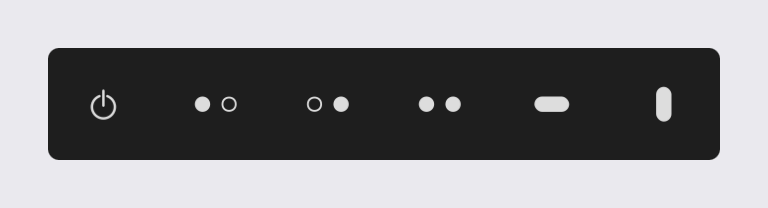
Six buttons, every one a large target.
A floating, always-on-top panel with a dark native look, a sliding highlight and smooth collapse and expand. It never takes the focus from the app you are working in.
| Button | Action |
|---|---|
| Show / hide | Collapse or expand the panel; also its move handle |
| Left click | A single left click |
| Right click | A single right click |
| Double click | A double left click |
| Drag | Press, move, release — select text, move files |
| Middle / Scroll | Middle click over a link · auto-scroll over a page |
Left again, without asking.
Default to Left Click arms Left again after any action fires: right-click to open a menu, then rest on an item — Left is already waiting. Automatic Cancel clears the armed action after one use instead of repeating it on every stop.
Drag works in two pauses: hold still at the start until the button presses down, move, hold still again until it lets go. If the system says the button is no longer held, the drag gives up rather than leave a button pressed that isn't.
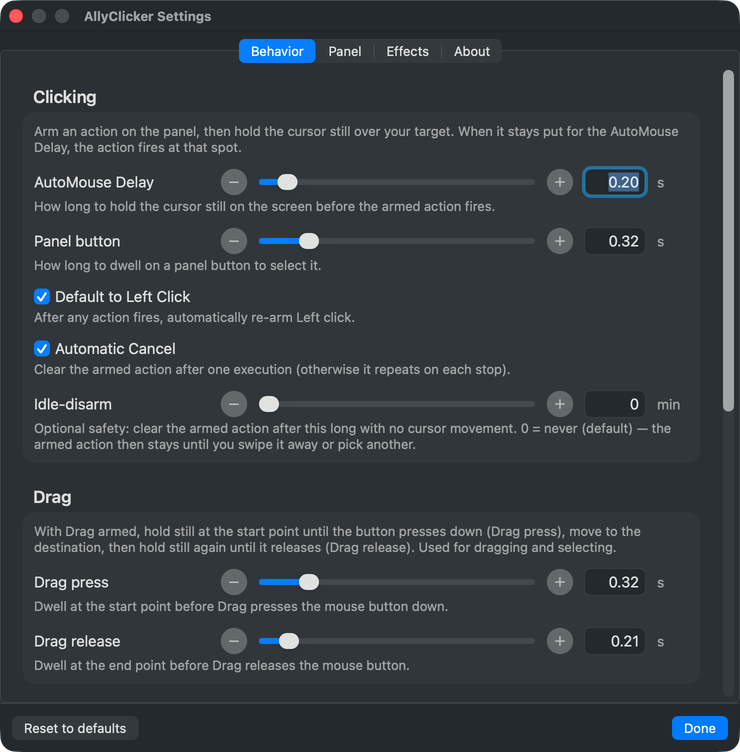
Vertical or horizontal, expanded or collapsed.
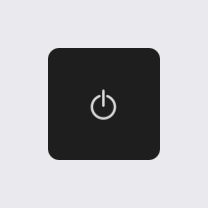
Stack the buttons in a column or a row; horizontal docks top-centre. Rest on the show / hide button to fold the panel down to that one button and back; with Launch collapsed it starts that way. It stays on screen when the display arrangement or resolution changes.
Move it hands-free: arm Drag, then rest on the show / hide button — the panel follows the cursor until you hold still to drop it. The position is remembered.
Smart Middle and auto-scroll
One button that knows what is under the cursor.
Over a link it middle-clicks — the link opens in a new tab. Over the page it starts auto-scroll: a red anchor drops where you stopped, and the page scrolls the way you move away from it — farther is faster, back toward the anchor is slower.
To scroll, rest on Scroll, then on the page, and move the cursor up or down in a gentle zigzag, like a stretched-out letter S. A slight side-to-side sway is easier to keep up than a straight line, and makes the speed easier to hold.
To end it, hold still or move onto the panel; the scroll stops where you are, without clicking. A short pause after scrolling keeps the next click from landing on whatever is under the cursor, and the exit delay lets you pause to read without stopping the scroll.
- Over a link — new tab
- Over the page — anchor
- Farther is faster
- Back is slower, then up
- Hold still — stop
- A link — next page
Small things, every day
Feedback you can see and hear.
Brush to cancel
A quick swipe across the panel disarms it — no button to hit. Read in peace; arm Left again when you need it.
Idle-disarm
Optional: clear the armed action after a while with no movement, so a later stray move can't fire it.
Steady aim
Jitter tolerance and a move threshold tune out head-tracker tremor, so a click lands where you meant.
Click and arming sounds
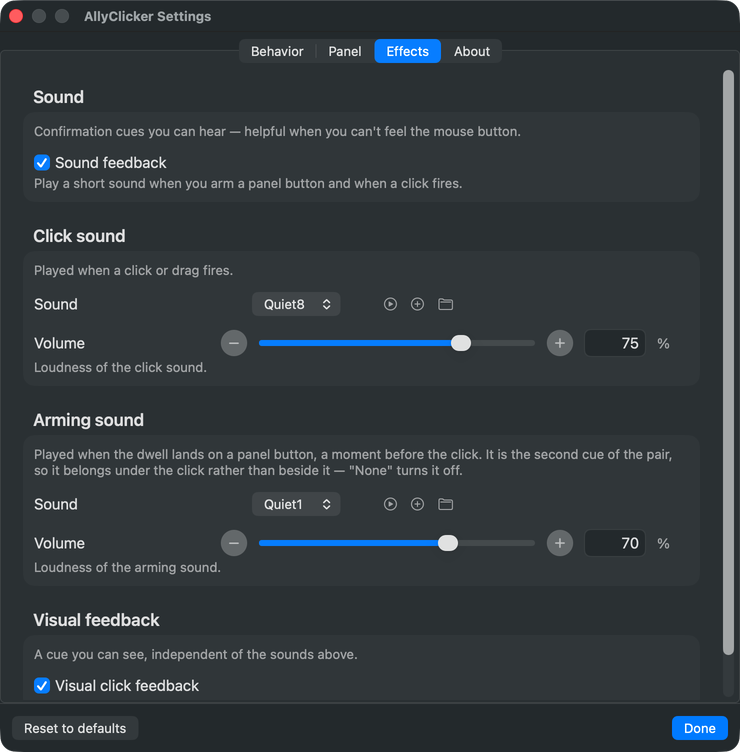
A sound when a click fires and another when an action is armed — each with its own volume, or your own files.
Ripple
A brief red ring at the cursor when a click fires — the echo of a button you cannot feel.
Menu bar, launch at login
No Dock icon: Settings and Quit live in the menu bar, and the panel is there as soon as you log in.
Settings
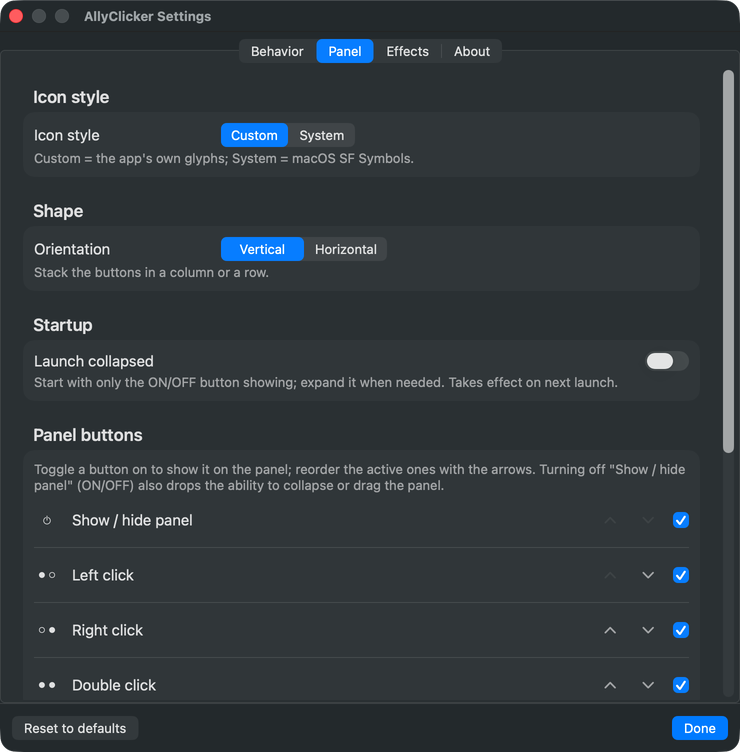
Tuned to how you move.
Changes apply at once and are saved by themselves; Reset to defaults brings the factory values back.
Install
Free, for macOS 14 and later.
Install with Homebrew, then allow AllyClicker in System Settings → Privacy & Security → Accessibility — that is what lets it click for you.
AllyClicker runs in your session and cannot appear on the login window; macOS's own dwell control and on-screen keyboard can, and the guide says where to find them.
# once
brew tap umkasanki/tap
brew trust umkasanki/tap

# AllyClicker
brew install --cask allyclicker
Inspired by Point-N-Click by Polital Enterprises · button icons after DwellClick by Pilotmoon · auto-scroll after LinearMouse.